email privacy
Email Tracking Pixels: How to Block Them
Learn how email tracking pixels work, how to spot them, and how to block remote images without making useful newsletters unusable.
 Mailamber Team10 min read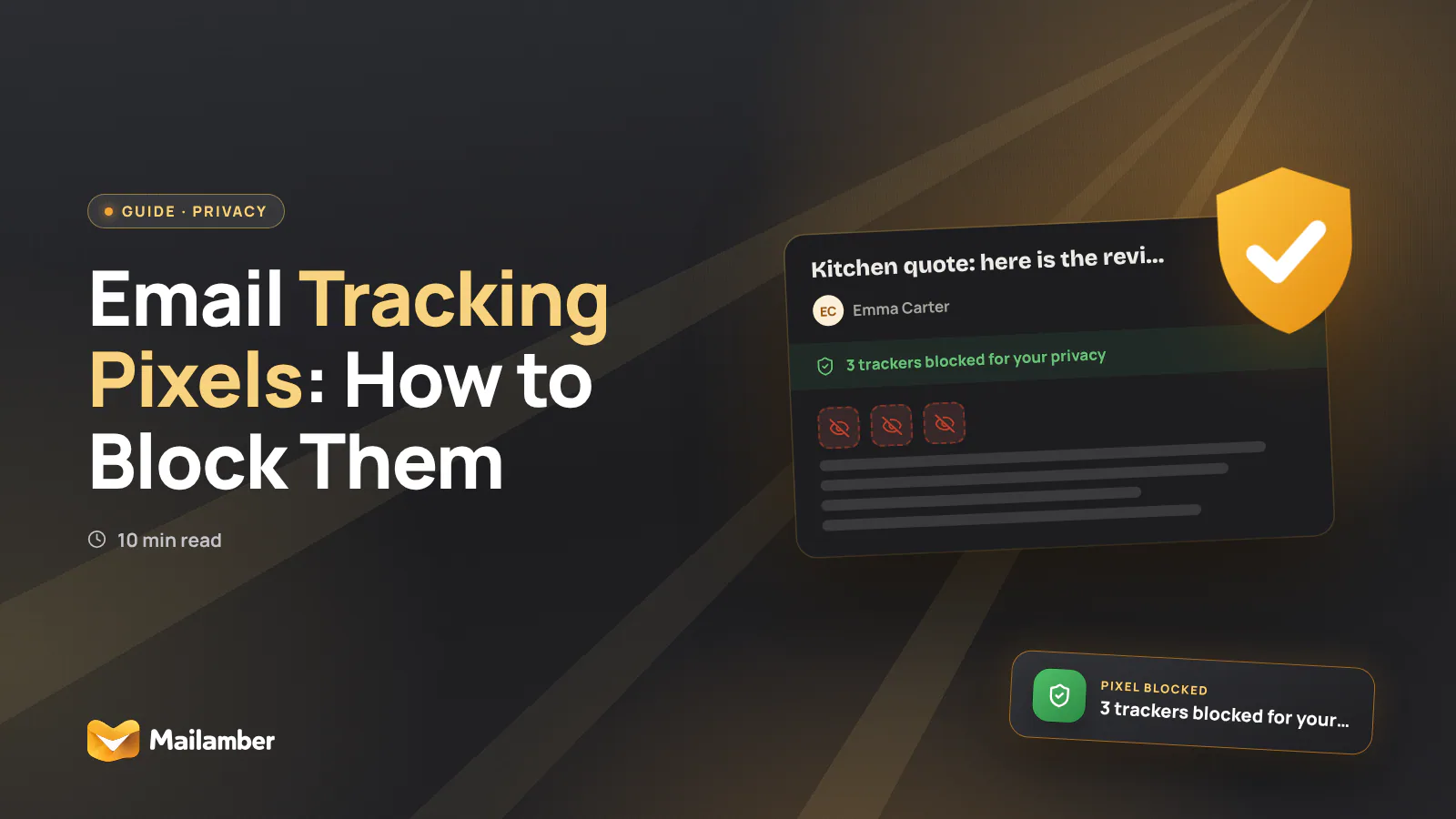
An email tracking pixel is a tiny remote image that can notify the sender when an email is opened and sometimes reveal technical details about that request. This guide explains how to recognise tracking, what image blocking does and does not stop, and how to keep useful newsletters readable without sharing every signal automatically.
Myth: A tracking pixel is easy to see in the email
What is actually true
Most tracking pixels are designed to be hard to notice. They may be transparent, only one pixel wide, or placed inside an ordinary-looking logo, footer or layout element. The email can look perfectly normal while its HTML requests an image from a remote server.
When that request is made, the server may receive a timestamp, an identifier linked to the message or recipient, and technical information supplied by the email client or network. The exact details vary by app, proxy and network setup. An apparent “open” is a signal, not proof that a person carefully read the message.
Why the myth exists
People often imagine a pixel as a visible dot. In practice, the word describes the tracking method rather than something you can reliably spot with your eyes. Marketing platforms also make tracking easy to add without changing the visible design.
What to do instead
Treat unexpected remote content as a privacy decision. If your email app says that external images are blocked, do not assume the message is broken or dangerous. Ask yourself whether loading the content is useful right now.
For technical checks, view the raw message or source when your email service allows it. Search for remote <img> URLs, long unique-looking tokens and image domains that do not belong to the sender. This can confirm that external content exists, but it does not show whether the image was requested in the past.
Myth: Opening an email always tells the sender you read it
What is actually true
Opening a message and reporting an open are different events. A sender may receive an apparent open when your client requests a tracking image. That request can happen when you preview a message, reopen it, or sometimes load it automatically. It can also fail to happen if images are blocked, unavailable or fetched through a privacy layer.
Automatic loading creates false positives. A security scanner, mail proxy or other automated process may request content before you read the message. Forwarding can also create confusing results, especially when several people use the same message.
Why the myth exists
“Opened” is a simple label in a campaign dashboard. It is easier to understand than the more cautious explanation: “A remote resource was requested.” The label can make an imperfect technical event sound like certain human behaviour.
What to do instead
If you are the recipient, block remote images until you choose to load them. If you send email, do not treat an open as confirmation that your message was understood or acted on.
Read receipts are a separate mechanism. They are usually handled through a message disposition notification, and your email client may ask before sending one. You can review the technical standard in RFC 8098, or see this guide to read receipts and open notifications.
Myth: Remote images and tracking pixels are the same thing
What is actually true
A tracking pixel is one type of remote image. Remote images also include legitimate content such as a newsletter photograph, a product illustration, a company logo or an image hosted by a ticketing system.
The privacy issue is not that every remote image is malicious. It is that loading any external resource creates a request. The request may be useful, but it can also tell the host that your client tried to fetch a particular URL.
A remote image can also be unique to a message or recipient. In that case, the image itself may be visually harmless while the URL acts as an identifier. Conversely, a shared image may provide little useful information to the sender beyond a request.
Why the myth exists
Privacy advice often uses “block images” as shorthand for “block tracking pixels”. The advice is practical, but the terms are not interchangeable. Blocking all remote images is a broad control that catches pixels along with ordinary visual content.
What to do instead
Keep remote images blocked by default, then make selective exceptions. Load them for an expected invoice or a newsletter you genuinely want to read. Leave them blocked for unsolicited marketing, unfamiliar senders and messages that create pressure to click.
This is a useful privacy habit because it separates the decision to read from the decision to contact a remote server. You can read the text first and decide afterwards.
Myth: Blocking images stops every kind of email tracking
What is actually true
Image blocking mainly reduces tracking based on remote image requests. It does not remove every signal from an email.
Links can contain recipient or campaign identifiers and redirect through a measurement service. A click may therefore be recorded even when every image remains blocked. Read receipts, delivery logs and activity on a website after you click are separate sources of information.
A sender may also receive delivery information from mail systems. That does not necessarily reveal that you personally read the message. It is a different event from a pixel-based open.
Why the myth exists
Images are the most visible privacy control in many email apps. Once images disappear, the message feels protected. That is helpful, but it can create a false sense that all tracking has stopped.
What to do instead
Use several small controls:
- Preview a link before clicking it.
- Be cautious with redirects and long URLs containing unique tokens.
- Visit a known website directly when an unexpected message asks for sensitive information.
- Keep read receipts opt-in or disabled if you do not need them.
- Do not reply to suspicious messages simply to ask whether they are genuine.
- Unsubscribe through a trusted route, or block the sender, when a newsletter is unwanted.
Terms such as utm_, click, redirect and campaign can be clues, but they are not proof of tracking. Some links use these labels for ordinary analytics, while some tracked links use less obvious formats. A link can also be legitimate and still record a click.
For a broader explanation of these methods, read how email tracking works.
- Read the text without loading remote images.
- Check the sender and destination before clicking.
- Load images only if they add useful context.
- Keep receipts and remote content manual for sensitive mail.
Myth: Disabling image loading makes newsletters unusable
What is actually true
Some newsletters depend heavily on images. Others remain useful because the text, headings and links are included in the message itself. Accessibility text, image descriptions and plain-text alternatives may also preserve the main information.
The experience will not always be perfect. A product grid may lose its photographs, and a branded header may become a blank space. That is a real trade-off, not a reason to give every sender automatic access.
Why the myth exists
Email design often assumes that images will load. When they do not, the result can look unfinished. Many people then turn image loading back on everywhere instead of making exceptions for the messages they value.
What to do instead
Use a two-step choice:
- Read the available text and decide whether the message is worth loading.
- If it is, allow the images for that message or sender, if your client offers that control.
For an expected travel booking, delivery update or event ticket, loading images may make the message easier to use. For a cold sales email, the images are rarely essential. If a newsletter is consistently poor without remote images, find the publisher’s web version or change your subscription preferences.
You can also reduce inbox clutter by using blocked senders and unsubscribe controls. Unsubscribing from unwanted mail is often more effective than repeatedly deciding whether to load its images.
Myth: Read receipts and spy pixels provide the same information
What is actually true
They can both produce information about message activity, but they work differently.
A read receipt is an explicit protocol or client action. Depending on the recipient’s settings, the email app may ask whether to send a notification. The recipient can decline it, and support varies between providers and apps.
A spy pixel works through a remote content request. If images load, the request can be logged without a visible receipt prompt. If images are blocked, that particular open signal may not be created. Neither method proves that the recipient understood the message.
Why the myth exists
Both features are often described as “knowing whether an email was opened”. That phrase focuses on the result and hides the difference between a requested confirmation and a background resource request.
What to do instead
As a recipient, make read receipts a deliberate choice. Decline them for messages where you do not want to confirm activity. As a sender, use them sparingly and never rely on them for consent, payment confirmation or other high-stakes decisions.
If you use a local-first email workflow, check which controls are active on each device. Settings can differ between a desktop app, a webmail account and a phone.
A practical privacy routine
You do not need to inspect every message like a security analyst. A simple routine covers most everyday cases.
Keep external images blocked by default. Read the sender, subject and text first. Treat a request for a password, payment or urgent action as a separate security question, not merely a tracking question.
Before clicking, preview the destination. If the message is unexpected, open the organisation’s website or app independently. Do not enter credentials after following a link from a message unless you have verified the destination carefully.
Load remote content when the benefit is clear. An expected booking confirmation may be worth the trade-off. A message from an unknown advertiser usually is not.
These controls improve privacy, but they do not make email anonymous. They also do not replace malware protection, account security or phishing awareness. For sensitive messages, use a trusted channel to verify unusual requests.
In Mailamber, remote images and tracking pixels are blocked by default, with a counter showing how many were stopped. That makes the choice visible: you can read first, then load content when it is useful rather than allowing every message to fetch images automatically.
FAQ
Can a sender know I opened an email?
Possibly. If the message contains a tracking pixel and your email client requests it, the sender may record an apparent open. Blocking remote images prevents most pixel-based open signals, but other forms of tracking can remain.
Are email tracking pixels dangerous?
Usually, a pixel is a privacy concern rather than malware. It can connect a message or recipient identifier with a request and may expose technical details available to the server. Do not click suspicious links, and keep remote content blocked when you do not trust the sender.
Can I block tracking pixels without blocking useful images?
Often, yes, by blocking remote images by default and allowing them selectively. A dedicated tracker-blocking feature may also identify blocked requests, but no tool can reliably classify every remote image perfectly.
Does an image proxy solve email tracking?
It can reduce what the sender sees directly, including in some cases your IP address, but it is not a complete solution. The proxy may still fetch unique image URLs, and it does not stop tracked links or read receipts.
Should I disable read receipts?
Disable them or set them to ask first if you do not need them. A read receipt is not the same as a tracking pixel, but it can still confirm message activity. Your choice should match the sensitivity of the conversation and the expectations of the people you email.
For a practical setup guide, see blocking email trackers and remote images.
email privacytracking pixelsremote imagesemail security
Newsletter
One calm email, every two weeks.
One email every two weeks: Mailamber news, guides on email and privacy, practical tips. No spam. Unsubscribe in one click.

Check your inbox
We’ve sent a confirmation link to . One click and you’re in.
Can’t find it? Take a look in your spam or Promotions tab.
Still nothing after a few minutes? Subscribe again with the same address and we’ll resend the link.

Read also
Official Mailamber guides on the same topic
- Blocking email trackers and remote imagesHow Mailamber blocks tracking pixels and remote images in the emails you receive, how to load them for a trusted sender, and what the privacy dashboard shows.
- How email tracking worksTicks shared between PC and phone, the Tracking view, what counts as an open and what doesn’t (scanners, Apple, Gmail), the timeline, notifications and the monthly quota.
- Email tracking: privacy and legal obligationsWhat data Mailamber’s email tracking collects, why it’s kept to a minimum, and what to consider when informing recipients under the GDPR and ePrivacy rules.