email organisation
Organize Email Inbox with Two Action Folders
Organize email inbox with two simple folders: keep your next actions visible, track replies you are waiting for and review both without losing context.
 Mailamber Team10 min read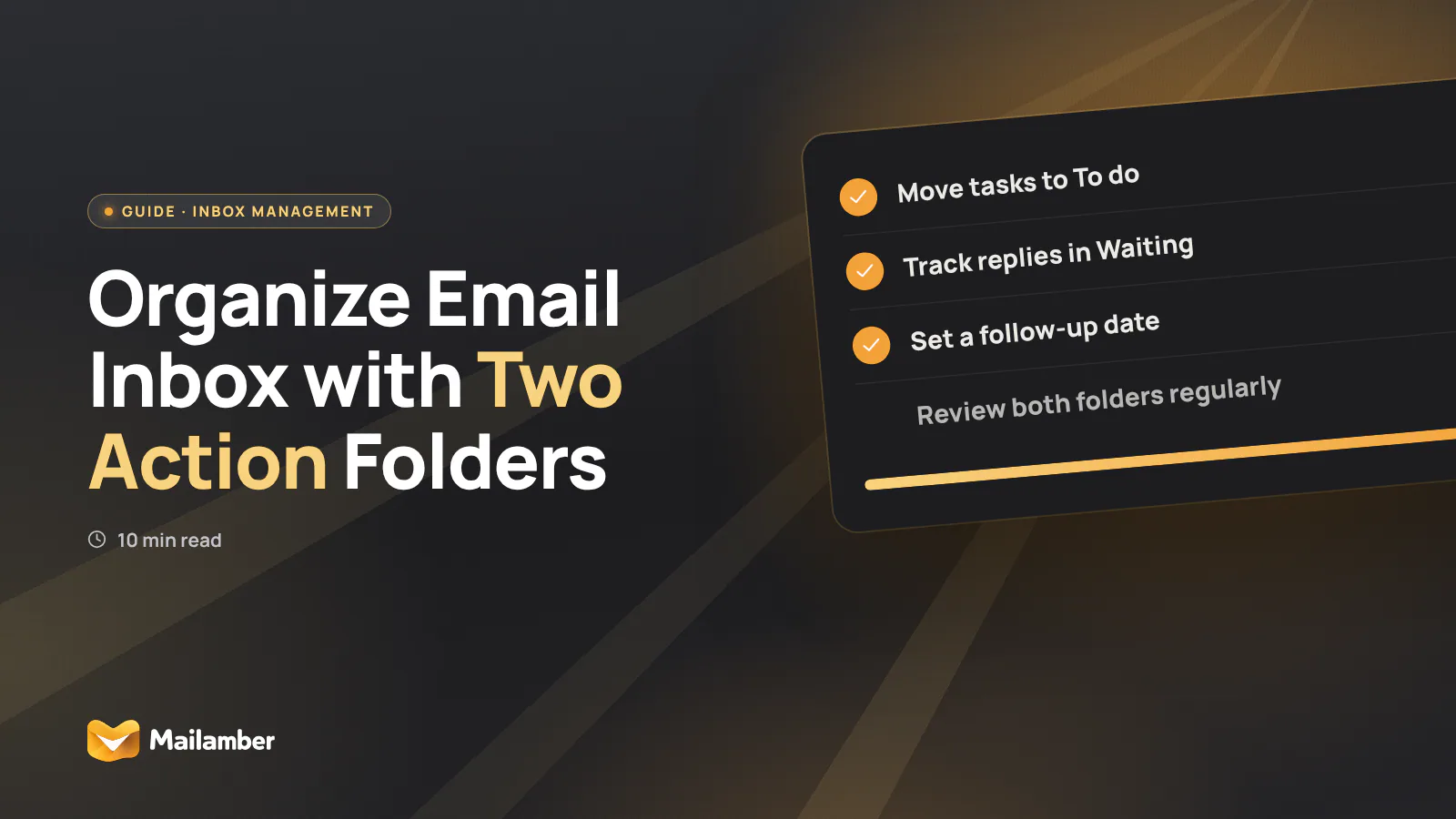
The two-folder email method sorts messages by responsibility: To do contains emails requiring your next action, while Waiting contains emails where you are waiting for someone else. This guide shows you how to organise your email inbox, process new messages, set follow-ups and troubleshoot a system that starts to feel crowded.
Why two action folders are enough for most email decisions
Topic folders answer, “What is this email about?” Action folders answer, “Who needs to do something next?”
That distinction is more useful when your inbox contains meeting arrangements, invoices, personal messages, documents and ongoing work. A topic folder may tell you that a message concerns a project. It does not tell you whether you need to reply or whether another person owes you an answer.
The two folders keep responsibility visible:
- To do: you need to write, decide, check, send, approve or complete something.
- Waiting: you have done your part, and another person or organisation needs to respond.
- Archive: no action remains, but you may need the information later.
These are not permanent categories. They are temporary work queues based on time and responsibility.
A message can move between them. You might place a contract in To do, review it and send your questions, then move the conversation to Waiting. When the other person replies, move it back to To do if their answer creates work for you.
You can still use topic folders for reference. They become a library rather than a list of unfinished commitments.
Set up the “To do” and “Waiting” folders
This method works in Gmail, Outlook, Apple Mail, Thunderbird and other email clients. Menu names vary, but look for New folder, Create folder, Move to, Archive and Snooze.
If your provider uses labels rather than folders, create two labels with the same names. The principle stays the same: one place for work you own, and one place for replies you are monitoring.
1. Create the two folders
Open your email client’s folder list. Choose New folder or Create folder.
Create:
- To do
- Waiting
Keep the names short. They should be easy to recognise in a sidebar and easy to choose on a phone.
Expected result: you can see both folders without opening your inbox.
2. Define the responsibility test
For each message, ask one question:
Who needs to do something next?
Use these answers:
- I do: move the message to To do.
- Someone else does: move it to Waiting.
- Nobody does: archive or delete it.
- I can finish it now: take the action, then archive the message.
For example, an invoice awaiting your approval belongs in To do. A request you have answered, where you are waiting for confirmation, belongs in Waiting. A newsletter that needs no response belongs in the archive.
Expected result: every message leaves the inbox with a clear destination.
3. Add a follow-up date when you move a message to Waiting
Do not treat Waiting as a storage box. It is a list of commitments that need another look.
Choose a date based on the request and its normal response time:
- Meeting confirmation: check again on the next working day.
- Supplier quotation: check after a few working days.
- Formal request to a public authority: use the stated deadline or a sensible review date.
- Non-urgent personal reply: check the following week.
Use a calendar entry, a task reminder or Snooze. If your email client supports follow-up reminders, set one while moving the message. For another practical approach, see this guide to follow-up timing when nobody replies.
Add the reason to the reminder. “Follow up on quote” is more useful than “Check email”.
Expected result: each important waiting message has a time when it should return to your attention.
4. Make requests easy to answer
When you send an important request, state the next step clearly. Try:
- “Could you send the signed form by Thursday?”
- “Please confirm whether Tuesday works.”
- “Could you let me know if this version is approved?”
A clear request helps the recipient and gives you a natural follow-up point.
Expected result: you know what answer to look for and when a reminder would be reasonable.
- Decide whether the email needs your action or someone else’s response.
- Move it to “To do” when you own the next action.
- Move it to “Waiting” when you have acted and need a reply.
- Add a follow-up date to important Waiting messages.
- Review both folders at set times, then archive completed conversations.
Process each new message with one clear choice
Do not organise the entire history of a conversation before deciding what happens next. Read enough to make one decision, then take that decision.
Start with the request, not the subject
A subject such as “Budget update” does not tell you what to do. One message may ask for approval. Another may simply announce that approval has already been given.
Look for the action hidden in the message:
- Is someone asking you to decide?
- Are they asking you to send something?
- Have you already replied?
- Are you waiting for information?
- Is this only an update or record?
If the request is unclear, move the message to To do if you need to investigate. If you send a clarification and now need the other person to answer, move it to Waiting and set a review date.
Use four possible outcomes
For every new message, choose one:
- Act now if the task is short, clear and genuinely possible now.
- Move to To do if you need focused time or a decision.
- Move to Waiting if another person must respond.
- Archive or delete if no open action remains.
Avoid leaving messages in the inbox “for later”. That creates a second task list and makes the inbox harder to trust.
Keep the next action concrete
“Work on project” is not a useful next action. “Read sections 4–6 and list contract changes” is easier to begin.
If a message contains several requests, identify the next one. Record larger tasks separately if they need more than the email itself. Keep the conversation in To do while you still own an action.
After you finish your part, move it to Waiting only if another person genuinely owes you a response. Otherwise, archive it.
Archive completed conversations
Archiving is not losing a message. It is removing a completed commitment from your working view.
Use email search when you need the conversation later. Keeping every completed message in To do makes urgent work harder to see.
Work from both folders without letting them grow
Review To do when you plan your work. Choose one message and define its next physical action. Then either do it, schedule it elsewhere or decide that it no longer matters.
Review Waiting at a predictable time. Look first at messages whose follow-up date has arrived. Leave future follow-ups alone until their review date.
When a reply arrives, make a fresh decision:
- Archive the conversation if the matter is complete.
- Move it to To do if the reply creates work for you.
- Move it back to Waiting if you have responded and need another answer.
- Close it if the request is no longer relevant.
Use Snooze when a message should return at a specific time. Snooze handles timing; Waiting handles responsibility. They can work together, but they are not the same thing. See the guide to snoozing an email for the practical steps.
A weekly reset can also help. Open both folders and ask:
- Does every message still represent a real commitment?
- Is the next action clear?
- Does every important waiting item have a date?
- Can anything be completed or closed now?
If a message has stayed in To do for weeks without movement, change the task, schedule time for it or close it. A folder is useful only when it reflects decisions you still intend to honour.
Use the method across several accounts
The same rules work for personal and work email. Create the folders in each account, or use a unified view if your email client supports one.
Mailamber’s unified inbox and folders can bring several mailboxes into one working view while keeping your responsibility-based structure visible. You can learn how its unified inbox, folders and starred messages work before deciding whether it suits your setup.
Keep the folder names consistent across accounts. Switching between “Action”, “Reply later” and “Pending” makes the system harder to remember.
Common mistakes and troubleshooting
The folders have become a second inbox
Open each message and write a short phrase describing what must happen next.
If no action remains, archive it. If another person owes you a response, add a date. If you cannot explain the commitment in one sentence, clarify it before keeping the message in an action folder.
Waiting contains every unanswered email
An unanswered message is not automatically a follow-up.
Keep it in Waiting only when you have a reason to expect a reply and a reason to check again. Newsletters, old conversations and low-value requests can be archived, deleted or unsubscribed from.
You forgot the follow-up date
Make the date part of the move. Do not move a message to Waiting with a promise to “sort it out later”.
Set a reminder immediately. If your email client has no suitable reminder, create a calendar event with the message subject and a link to the conversation.
A reply appears in the wrong folder
Threads can change direction. If a new reply creates work for you, move the conversation to To do. If you have replied and now need an answer, move it to Waiting.
If a rule is moving messages unexpectedly, review your automatic rules. Start with simple rules for newsletters or receipts. Avoid rules that try to infer responsibility until your manual system is stable.
To do is full of old tasks
Do a short reset. For every old message, choose one option:
- Complete the next action.
- Schedule time for the work.
- Record a larger task elsewhere and keep the email as reference.
- Move it to Waiting with a review date.
- Archive it because the work is no longer needed.
If there is no clear next action, the message is not ready to stay in To do.
The folders are not visible on your phone
Check whether the app is showing the full folder list or only favourite folders. Look for All folders, More or Manage folders.
If your client does not sync custom folders as expected, check the account settings and test with one message. Until the folders appear consistently, use the same responsibility rules with labels, stars or a task reminder rather than relying on an invisible folder.
FAQ
Are “To do” and “Waiting” permanent archive categories?
No. They are temporary action queues based on who needs to act next. A message should leave them when the responsibility is complete, changes hands or no longer matters.
What should I do with an email that contains several tasks?
Choose the next action and keep the message in To do while you still need to act. Record substantial additional tasks separately. Move the conversation to Waiting only after you have finished your part and another person owes you a response.
How long should I wait before sending a reminder?
Use the deadline or response time stated in the request. If there is no deadline, consider the relationship, urgency and normal working pattern. A clear, polite reminder is better than sending repeated messages without a defined reason.
Should a Waiting message stay in the inbox too?
Usually not. Keeping it in both places creates duplicate work and makes the inbox less reliable. Move it to Waiting, then use a reminder, calendar date or snooze so it returns when needed.
Can this method work with Gmail, Outlook or another email client?
Yes. The method needs only two visible locations and a way to review them later. The exact menu names differ, but New folder, Move to, Archive and Snooze are common options.
email organisationinbox managementproductivityfollow-up
Newsletter
One calm email, every two weeks.
One email every two weeks: Mailamber news, guides on email and privacy, practical tips. No spam. Unsubscribe in one click.

Check your inbox
We’ve sent a confirmation link to . One click and you’re in.
Can’t find it? Take a look in your spam or Promotions tab.
Still nothing after a few minutes? Subscribe again with the same address and we’ll resend the link.

Read also
Official Mailamber guides on the same topic
- Automatic rules for incoming mailHow to create rules that mark as read, flag or move messages based on sender, subject, attachments or date, on your PC and on Android.
- Follow-up reminders when nobody repliesHow to have Mailamber remind you to follow up on an unanswered email after 24, 48 or 72 hours or a custom time, and how the reminder clears itself.
- How to install Mailamber on AndroidHow to install Mailamber from Google Play, sign in with your Mailamber account or create one, add your first mailbox and keep the app up to date.