inbox zero
Inbox Zero Method: A 20-Minute Weekly Reset
Use this inbox zero method to process email in a calm weekly reset, with four decisions, a worked example and practical ways to avoid constant checking.
 Mailamber Team11 min read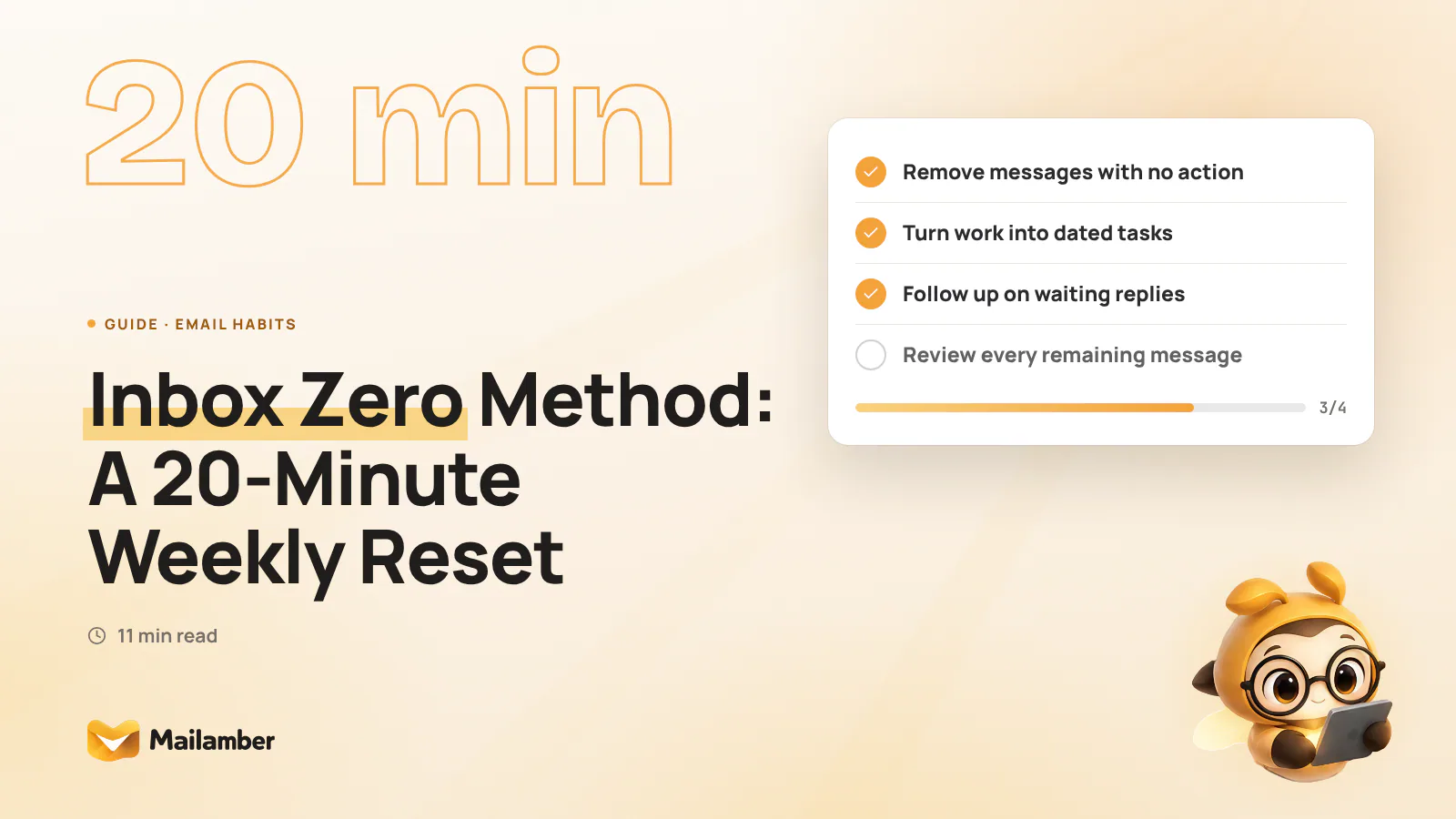
The inbox zero method is a way to process each email into a clear next action, reference, scheduled reminder, archive or deletion instead of leaving decisions in the inbox. This guide shows how to run a realistic 20-minute weekly reset, with four decisions, a worked example and simple ways to keep the system light.
Why Inbox Zero Works Better as a Weekly Reset
“Inbox zero” can sound like a demand to answer every message immediately. That is not a useful standard for most busy people. Email is a communication channel, not a complete task manager, calendar or long-term filing system.
A better goal is decision clarity. When you open a message, decide what it means and where it belongs. You might reply, create a task, wait for someone else, schedule a reminder, keep it for reference, archive it or delete it.
The inbox can still contain a few messages after your reset. That is acceptable if each one has a reason to remain visible. An empty inbox is not useful if important work has simply been forgotten in a task list, calendar or notebook.
A weekly reset works because it gives email a boundary. Instead of reacting to every notification, you create one short appointment for reviewing the whole picture. During the week, you can still handle urgent messages, but you do not need to keep reopening the inbox just to remember what needs attention.
Use a small set of destinations
Keep your system simple. Labels, folders, flags and views can all work, but they should reduce decisions rather than create more filing work.
Use these destinations as a starting point:
- Reply now: a short response you can complete without interrupting deeper work.
- Action: work that needs time, research or a decision.
- Waiting: someone else owes you information or a response.
- Scheduled: something to revisit on a known date.
- Reference: useful information with no current action.
- Delete or unsubscribe: messages with no future value.
These are decisions, not necessarily six folders. A longer task belongs in your task manager. A fixed appointment belongs in your calendar. A receipt may belong in your records system. Email should hold the context, not every responsibility you have.
Set Up the 20-Minute Timer and Four Decisions
Choose a regular appointment that fits your week. Friday afternoon can help you close open loops. Monday morning can give you a clean starting point. Pick the time you are most likely to protect.
Before you begin, close unrelated tabs and silence non-essential notifications. Set a 20-minute timer. The limit is useful because it keeps the session focused on triage instead of turning into an unexpected afternoon of reading and replying.
Your four decisions are:
- Remove: delete, report or unsubscribe from messages that need no action.
- Act: reply, delegate or capture the next action for real work.
- Schedule: give future work or follow-ups a date and a place.
- Clear: archive reference material and review what remains visible.
- 1. First scan, minutes 0–4: remove obvious noise, duplicates, expired alerts and unwanted subscriptions.
- 2. Action pass, minutes 4–10: reply to quick requests, delegate owned work and write clear next actions.
- 3. Schedule pass, minutes 10–16: add longer work, waiting points and follow-ups to dated tasks or reminders.
- 4. Final review, minutes 16–20: archive reference mail and check that every visible message has a reason to stay.
Do not aim to read every message in full. Start with the subject, sender and first useful lines. Open the complete thread when you need context for a decision.
Pass One: Remove Messages That Need No Action
Begin with the easiest decisions. Delete expired delivery alerts, duplicate notifications, old promotions and messages you know you will never use. Removing obvious noise makes the meaningful items easier to see.
Unsubscribe from recurring messages that have repeatedly failed your usefulness test. If a sender offers no trustworthy unsubscribe route, or the message looks suspicious, do not click its links. Report it as spam through your email provider instead.
You can also solve the problem at the source. Change a service’s notification settings when possible. If a newsletter no longer earns your attention, block the sender or unsubscribe from it rather than processing the same message every week.
Avoid opening every promotion “just in case”. That turns a simple removal pass into browsing. Your question is not “Could this be interesting?” It is “Do I have a reason to spend time on this now?”
Pass Two: Turn Real Work into Tasks, Replies or Snoozes
Now scan messages that may require action. Ask three questions:
- Is there a concrete action for me?
- Can I complete it in a few minutes?
- Am I the right person to do it?
Reply now when the answer to the second question is yes. Keep the response functional. A clear two-sentence answer is often better than a polished reply that remains unfinished for another week.
If someone else owns the next step, delegate it. Forward the thread with a short explanation and, when useful, a date. Record that you are waiting for their response. This prevents a delegated request from staying in your mind as an unfinished personal task.
For longer work, write a verb-led next action:
- “Compare the two printer quotes.”
- “Review Maya’s contract questions.”
- “Send the revised timetable to the team.”
- “Check the supplier’s delivery date.”
“Deal with this email” is not a useful task. It makes you reopen the same thread to work out what “deal with” means.
Schedule without hiding the decision
Longer work needs space in your working time. Add it to a task list or calendar with enough context to begin without rereading the entire conversation.
A useful task includes:
- A verb: review, approve, send, compare or call.
- An object: the proposal, invoice, contract or client.
- A date: when you will do it or review it.
Use snooze or a dated reminder when a message genuinely belongs in the future. For example, return to a supplier’s quote after they confirm stock. Do not snooze a message simply because you do not want to decide. Hidden email is still unresolved email.
For a follow-up, set a clear review point. If a person owes you information, a follow-up reminder can keep the open loop visible without requiring constant inbox checks.
A Worked Example: Resetting a Mixed Personal and Work Inbox
Imagine Lena Ortiz, a freelance brand designer. Her inbox contains work conversations, a family appointment, receipts, supplier questions and newsletters. She starts her weekly reset on Friday afternoon with a 20-minute timer.
Minutes 0–4: Remove
Lena deletes expired delivery notifications and promotions she will not read. She unsubscribes from two retail newsletters that have not been useful for months.
One unexpected message contains a suspicious attachment. She does not open it or follow its links. She reports it as spam and moves on.
Minutes 4–10: Act
A client asks whether Monday’s presentation can move from 10:00 to 11:30. Lena can answer in one minute, so she confirms the new time and archives the thread.
A printer asks Lena to approve a proof. Her assistant Daniel owns the detailed check. She forwards the message with: “Please check the paper stock and confirm by Thursday.” She records the thread as waiting rather than leaving it among her personal tasks.
Another client has sent a long list of website feedback. Lena will need focused time to work on it. She writes the next action, “Apply Riverstone homepage feedback and flag open questions”, rather than promising herself to “deal with the email”.
Minutes 10–16: Schedule
Lena finds a supplier proposal that needs comparison. She creates “Compare Northline and Cedar Studio print quotes” for Wednesday and attaches the relevant document to the task.
A tax receipt is useful but inactive. She saves the attachment in her records folder and archives the email. A meeting invitation belongs on her calendar, so she accepts it, checks the time and removes the invitation from her active inbox.
The Riverstone feedback task is scheduled for Tuesday morning. Lena keeps the email available as context, but the task—not the inbox—holds the commitment.
Minutes 16–20: Clear and review
A client promised brand assets needed for Monday’s presentation. Lena sends a polite follow-up explaining the deadline and marks the thread as waiting. She also closes an old quote request because the project was cancelled.
At the final review, the remaining messages have clear reasons to stay: some need Lena’s action, two are waiting for other people and a few are scheduled. Reference items have been archived.
Her inbox is not necessarily empty. It is understandable. Lena knows what she must do, what others owe her and when the next review belongs.
Common Mistakes That Make Inbox Zero Harder
Treating unread status as a priority system
Unread only means that a message has not been opened. It does not tell you whether the message is urgent, important or relevant.
Judge priority by consequence, deadline and responsibility. Then move the message to the place that supports that decision.
Building too many folders
A folder for every project, sender and month may look organised, but it can slow down every review. If filing takes longer than understanding the message, simplify.
Start with a few destinations. Add structure only when a repeated problem justifies it. Search is often enough for old reference material.
Using the inbox as a task list
An email can contain a task, but the inbox does not automatically make that task reliable. The work may remain hidden inside a long thread, mixed with unrelated conversations.
Capture the next action in the tool where you review your work. Keep the email as supporting context.
Writing perfect replies
Perfection creates invisible backlog. Most routine replies need a clear answer, not a carefully engineered essay.
If a message needs diplomacy, legal review or detailed thinking, schedule that work. Do not label it a quick reply when it is not one.
Snoozing everything uncomfortable
Snooze works when the future timing is real. It is not a substitute for deciding whether a message matters.
Before scheduling a message, name the reason: “Review after the supplier confirms stock” or “Return before Friday’s meeting.” If you cannot name the reason, archive, delegate, reply or delete instead.
Trying to recover in one marathon session
A backlog is information, not a personal failure. If 20 minutes is not enough, stop when the timer ends and book another short session.
Protect the routine. A sustainable reset is more useful than an exhausting attempt to process every old message in one sitting.
Keep the System Light During the Week
A weekly reset works best when daily email habits do not undo it.
Check email in batches when possible
If your role allows it, check email at two or three planned points during the day. Handle urgent communication in those windows and capture larger work as tasks.
Some jobs require faster responses. You can still separate genuinely urgent channels from routine email. Turn off non-essential notifications so every arrival does not interrupt your current work.
Keep the visible queue useful
Use views that support decisions instead of mixing every message together. Unread, waiting, scheduled and reply-needed messages each answer a different question.
If you work across more than one account, Mailamber’s smart folders show Unread, Snoozed, To reply and Starred messages in one place. Its unified inbox documentation explains how folders and starred messages can support a simpler review.
Protect the appointment
Put the weekly reset on your calendar. If you miss it, do not compensate with an evening of email. Schedule the next short review and process the messages with the greatest consequence first.
Keyboard shortcuts can also reduce repetitive handling when you are reviewing a large queue. Choose only the shortcuts you will actually remember; a small habit is easier to keep than a complete new workflow.
Measure friction, not perfection
After a few weeks, notice what keeps slowing you down. Are newsletters difficult to remove? Are tasks too vague? Do waiting messages lack review dates? Fix the source of the friction instead of adding another folder.
The best inbox zero method is the one you can repeat. Its purpose is not to display an empty screen. It is to make the next decision obvious and give your attention back to the work and people that matter.
FAQ
Does inbox zero mean having no emails?
No. Inbox zero means processing the decisions in your inbox, not maintaining an empty screen at every moment. A few visible messages are fine when each has a clear next action, owner, date or reason to remain visible.
How often should I use the inbox zero method?
A 20-minute weekly reset is a practical starting point. You can also process urgent messages during normal work, but avoid turning every notification into an invitation to check email.
Should I reply to every email during the reset?
No. Reply to short messages when you can answer without creating a new interruption. Turn longer or more complex requests into dated tasks, and delegate messages when another person owns the next step.
Is it better to archive or delete an email?
Delete messages with no future value, such as unwanted promotions or expired alerts. Archive useful reference material that you may need later but that does not require action now.
What should I do with messages I am waiting for?
Record who owes you something and when you will review the situation. Send a polite follow-up when needed, then keep the message in a waiting view or use a dated reminder rather than leaving it mixed with new requests.
inbox zeroemail productivityemail organisationweekly reset
Newsletter
One calm email, every two weeks.
One email every two weeks: Mailamber news, guides on email and privacy, practical tips. No spam. Unsubscribe in one click.

Check your inbox
We’ve sent a confirmation link to . One click and you’re in.
Can’t find it? Take a look in your spam or Promotions tab.
Still nothing after a few minutes? Subscribe again with the same address and we’ll resend the link.

Read also
Official Mailamber guides on the same topic
- Automatic rules for incoming mailHow to create rules that mark as read, flag or move messages based on sender, subject, attachments or date, on your PC and on Android.
- Writing an email: separate windows and attachmentsHow to write with Mailamber’s composer, open messages in separate windows, attach files by dragging them in, use the HTML editor and manage drafts.
- How to add an email account to MailamberConnect a mailbox to Mailamber on Windows and Android with automatic server detection, Sign in with Microsoft, or manual IMAP/SMTP setup.